


⚡ Free Express Shipping in USA✦
🔥 Newest Arrival Collection Live Now✦
✨ SUBSCRIBE TO GET YOUR 10% Off✦

Last Updated: October 23, 2026
Quick Summary
To prevent phone vibration while driving, enable Driving Focus on iPhone or Do Not Disturb While Driving on Android, which silences most notifications and vibrations. You can customize these modes to allow calls from emergency contacts only, and set them to activate automatically when your phone connects to your car's Bluetooth.
Phone vibrations are a real distraction behind the wheel. In 2024, 3,208 people were killed in motor vehicle crashes involving distracted driving, and cellphone use was cited as the distraction in 14% of all distraction-affected fatal traffic crashes that year. Even a brief buzz or notification can pull attention from the road.
The problem is not just about seeing the screen. A vibration can trigger a reflex to check the phone. That split-second glance costs focus. Over time, small distractions add up to real risk.
Understanding how to prevent phone vibration while driving is a practical first step toward safer trips. The goal is simple: keep the phone from demanding attention while you focus on the road.
Phone vibration comes from haptic feedback. This is the physical buzzing sensation your phone creates. It happens for several reasons:
Not all vibrations are the same. A call vibration feels different from a notification buzz. Some apps create custom vibration patterns.
The key difference: preventing vibration is not the same as silencing sound. You can mute audio but still feel the buzz. Many drivers do not realize their phone is vibrating until they glance down. That glance is the distraction.
iPhone offers a Driving Focus mode that reduces vibrations and notifications while you drive. This is the most effective built-in tool for iPhone users.
Steps to enable Driving Focus on iPhone:
Once active, Driving Focus silences most notifications and vibrations. Calls from favorites and emergency contacts may still come through, depending on your settings.
You can customize what gets through. Some drivers allow calls from family but block app notifications. Others block everything except emergency contacts.
Pro Tip: Set Driving Focus to activate automatically when your phone connects to your car's Bluetooth. This removes the need to manually enable it every drive.
The vibration reduction is significant. Your phone will not buzz for texts, social media, or app alerts. This keeps your attention on the road.
Android devices use Do Not Disturb While Driving to reduce vibrations and notifications. The setup varies slightly by phone model, but the core steps are similar.
Steps to enable Do Not Disturb While Driving on Android:
Android's Do Not Disturb While Driving mode can block calls, texts, and app alerts. You control which contacts or apps break through.
The vibration stops for most notifications once activated. Your phone will not buzz for emails, social media, or other app alerts.
Customization options on Android include:
According to Virginia Department of Transportation guidance, enabling Do Not Disturb can mute calls, notifications, and other alerts while driving. This is one of the most straightforward ways to prevent phone vibration while driving.
Driving Focus and Do Not Disturb While Driving handle most of the work, but they are not the only tools. The trick is knowing which setting stops which kind of vibration, because a single toggle rarely silences everything. Use this section as a map: match the vibration you want to stop to the control that actually stops it.
| Vibration source | iPhone control | Android control | What it stops | What it may not stop |
|---|---|---|---|---|
| Incoming calls | Sounds & Haptics > Vibrate on Ring/Silent; Focus > People | Sound > Vibration; DND > Calls | Ring and call vibration | Calls from allowed or starred contacts |
| Texts and app alerts | Settings > Notifications > per-app > Sounds/Haptics | Settings > Apps > per-app > Notifications | Buzz for that app | Alerts from apps you leave enabled |
| Haptic feedback (keyboard, system) | Sounds & Haptics > System Haptics | Sound > Vibration > touch feedback | System-level taps and buzzes | Incoming call or message vibration |
| Alarms | Clock app > alarm > Sound/Haptics | Clock app > alarm settings | Alarm sound and vibration | Some system-level alerts |
| Emergency alerts | Settings > Notifications > Government Alerts | Settings > Safety & emergency > Wireless emergency alerts | Test and optional alerts | Presidential alerts, which typically cannot be disabled |
Some apps have their own in-app vibration toggle that overrides the system setting. Messaging and social apps often bury this under Settings > Notifications > In-app vibration. If a single app keeps buzzing after you have silenced the system, check the app's own settings before assuming the phone is misbehaving.
Both iPhone and Android let you schedule Do Not Disturb for recurring times, such as a regular commute. This is a useful backup when automatic driving detection does not trigger, but it only covers the window you set. If your schedule changes, the schedule will not.
The most reliable approach combines an automatic driving mode with a manual fallback. If the automatic mode does not activate, you still have a switch or a scheduled DND to fall back on.
A phone mount keeps your device stable and visible without requiring you to hold it. This removes the temptation to grab your phone while driving.
CarNook™ Wireless Charging Car Mount →
Mounting your phone also reduces the visual distraction of vibration. When a phone sits loose on a seat or dashboard, it may slide or vibrate visibly. A secure mount holds it steady.
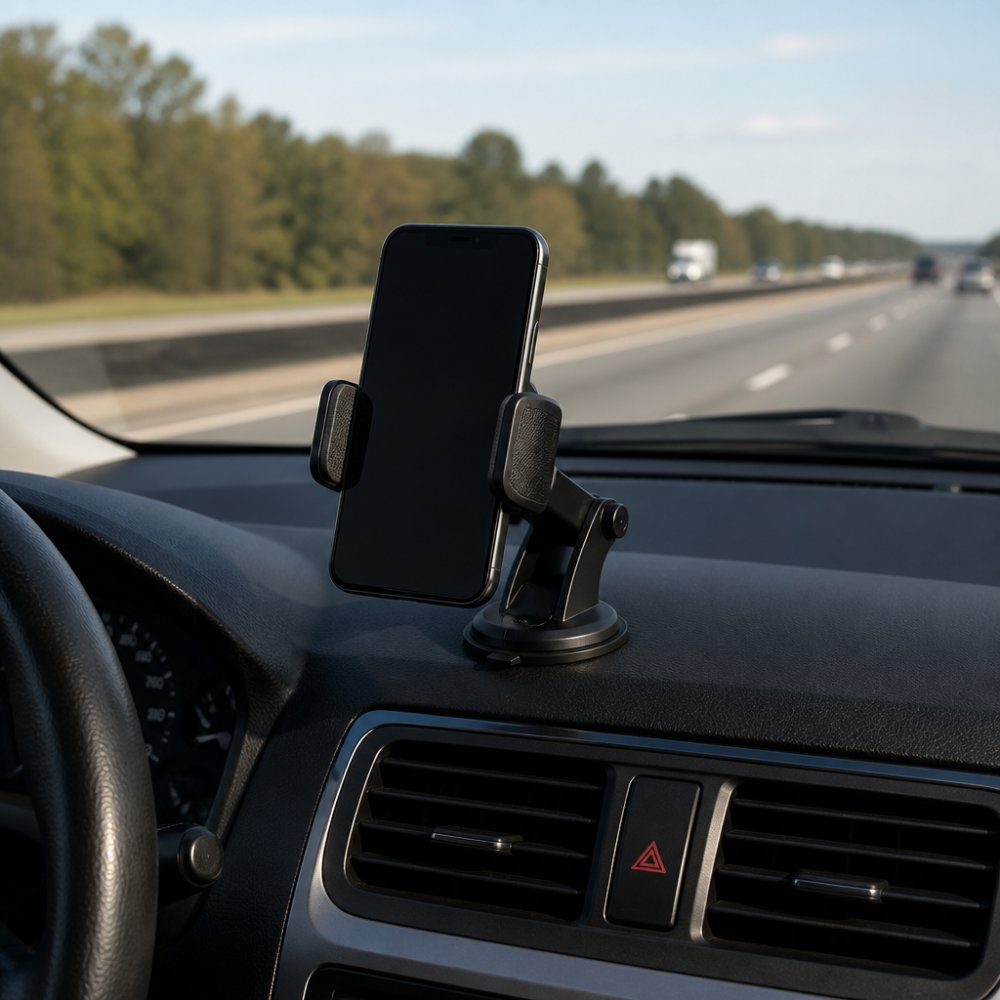
Why a phone mount helps:
A secure mount does not eliminate vibrations, but it makes them less noticeable. Explore different mount types and their advantages in a hands-free car phone mount buyer's guide to find the right option for your vehicle and phone. Your eyes stay on the road instead of following a sliding phone.
CarNook offers several mounting options designed for stability. The CarNook™ DashGrip Phone Mount uses an adjustable grip to hold phones firmly on the dashboard. For drivers who want charging while mounted, the CarNook™ Wireless Charging Car Mount provides both secure mounting and power, so your phone stays charged throughout your drive.

You can also review Is It Illegal to Have a Car Mount? What Drivers Need to Know to understand the legal side of using mounts while driving.
Silencing everything creates a new worry: what if something real happens? The goal is not to be unreachable. It is to let a small, deliberate set of people and alerts through while keeping routine buzz out.
Keep the list short. A common pattern is a partner, a parent, and a caregiver. The longer the list, the more the phone behaves like it is not silenced at all.
Both iPhone and Android can send an automatic reply to callers while a driving mode is active, so people know you are on the road. For hands-free handling, a car's built-in Bluetooth or a dash-mounted setup lets you take a short call without holding the phone. Keep calls brief, and end them if traffic or conditions demand your full attention.
If an allowed contact calls and you believe it is urgent, the safest move is to pull over at the next safe spot before answering. Do not try to manage a call, a route, and traffic at the same time. If you cannot pull over immediately, let it go to voicemail and call back once you are parked.
For a stable, hands-free setup that keeps the phone visible for navigation without inviting you to pick it up, browse CarNook's car phone mounts and MagSafe-compatible accessories. A secure mount paired with a driving mode is a simple combination that supports safer trips.
Preventing phone vibration is one piece of safe driving. A complete approach includes other habits.
Before you drive:
While driving:
After you arrive:
The National Safety Council notes that phone-blocking apps and devices can prevent drivers from making or accepting calls, texting, or accessing phone features, though the most effective tool is your own discipline.
Many drivers find that keeping the phone physically out of reach helps more than any app. A phone in the trunk or glove box cannot distract you because you cannot easily access it.
For broader guidance on managing phone use while driving, explore How to Prevent Phone Overheating While Using GPS Navigation for related safe-driving practices.
Preventing phone vibration while driving starts with understanding the problem. Vibrations distract drivers and pull attention from the road. A combination of tools works best: enable driving focus modes, use silent settings, allow only emergency contacts through, and secure your phone with a stable mount.
Your phone will still vibrate if you receive a call from an allowed contact, but routine notifications will stay silent. This balance keeps you focused while protecting you from missing genuine emergencies.
The most reliable setup uses automatic activation. When your phone connects to your car's Bluetooth or detects motion, driving mode activates without manual steps. Over time, this becomes invisible, your phone simply stops buzzing when you drive.
Open Settings, tap Focus, and select Driving Focus. You can set it to activate automatically when connected to your car's Bluetooth or when motion is detected. Choose which contacts and apps can reach you, and enable auto-reply to let callers know you're driving. Driving Focus silences notifications and vibrations, keeping your phone from distracting you while you're on the road.
Go to Settings, find Do Not Disturb, and enable it or set a schedule. Many Android devices offer a Driving Mode that activates automatically via Bluetooth or motion detection. You can customize which notifications come through and set auto-replies for calls and texts. This reduces vibration and alerts, helping you stay focused on driving safely.
Yes. Both iPhone Driving Focus and Android Do Not Disturb allow you to customize which apps and contacts can reach you. You can silence notifications and vibrations from texts, calls, and social media while keeping navigation audio and emergency contacts active. This way, your phone supports your driving without creating distractions.
Preventing phone vibration means silencing notifications and haptic feedback through device settings like Driving Focus or Do Not Disturb. Fixing a vibrating phone mount addresses physical movement caused by road conditions or a loose grip. A secure phone mount for your car helps reduce distraction from physical shaking, while device settings eliminate notification vibrations. Both work together to keep your focus on the road.
Safe driving depends on keeping your attention on the road. CarNook's secure car phone mounts and accessories help you build a distraction-free setup. Whether you use a simple dashboard mount or a wireless charging mount, a secure phone placement removes the temptation to grab your device. Explore CarNook's collection of car phone mounts and hands-free accessories to find the right solution for your vehicle and driving style.


