


⚡ Free Express Shipping in USA✦
🔥 Newest Arrival Collection Live Now✦
✨ SUBSCRIBE TO GET YOUR 10% Off✦

Last Updated: November 4, 2026
Quick Summary
Using NFC tags with magnetic car phone mounts lets a sticker on the mount trigger phone routines like navigation, Do Not Disturb, or music when your phone snaps into place. Keep the tag and metal plate in separate zones, since a plate between tag and phone can block taps.
Using NFC tags with magnetic car phone mounts turns a simple holder into a trigger for your phone's daily routines. A small sticker on the mount can launch navigation, silence notifications, or start music the moment your phone snaps into place.
The market is moving this direction fast. According to Future Market Insights' car phone holder market report, the global car phone holder market is projected to grow 6.2% per year from 2026 to 2036, and magnetic holders are expected to make up roughly 29% of that product segment in 2026.
Here is the appeal in plain terms:
NFC tags fit that goal well, as long as you understand where they work and where magnets can get in the way.
NFC tag automation for driving is the practice of programming a sticker to run a phone action when tapped. A tap can open a map, start a playlist, enable Do Not Disturb, or read incoming messages aloud.
NFC stands for Near Field Communication, a short-range wireless standard that lets two devices exchange a tiny amount of data when they touch or sit close together. According to Nomtek's guide to NFC technology, NFC operates effectively within a 4-inch radius, which is why a tap feels almost instant.
Think of the tag as a light switch for your phone. The most useful routines are the ones you repeat every single drive:
Keep each routine to a few actions so it stays easy to troubleshoot.
Setting up NFC tags on your mount takes about ten minutes. You need blank NFC stickers, a phone with NFC enabled, and a mount with a flat surface where the tag can sit.
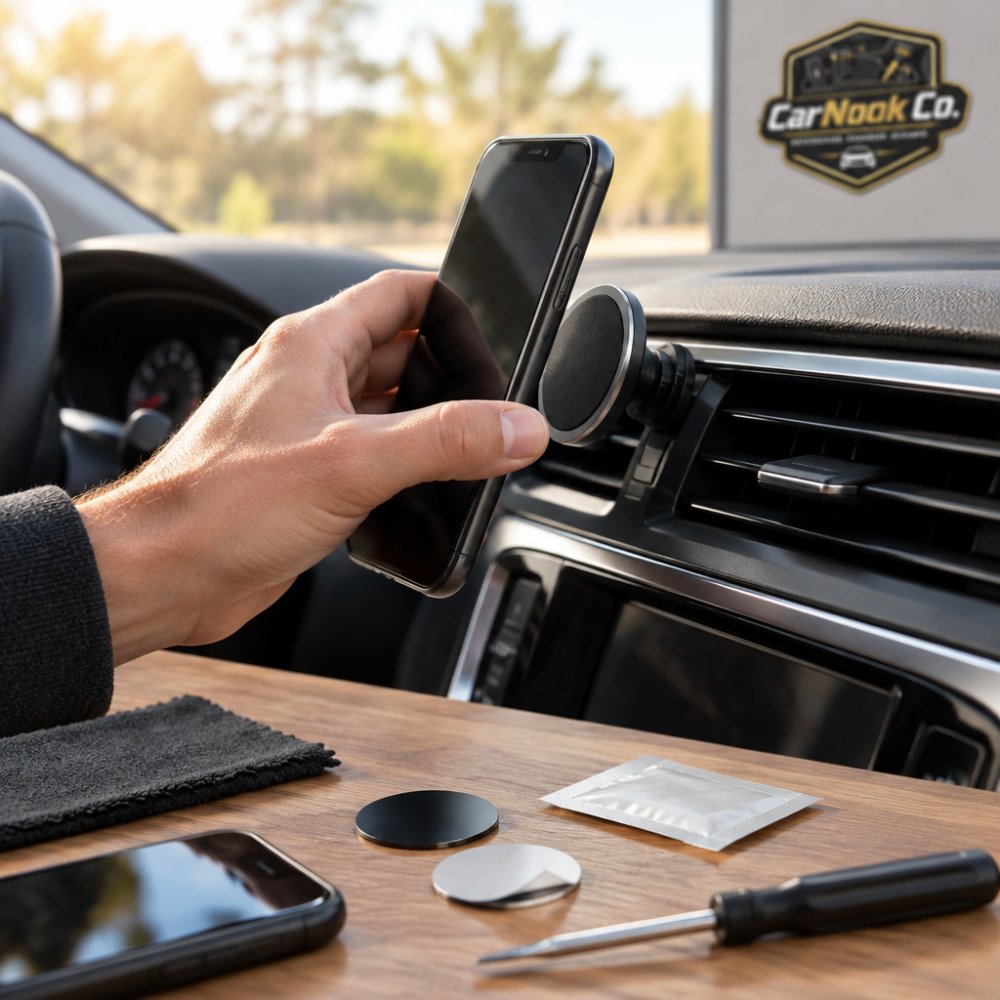
Follow these steps:
Watch out: placing the tag where the phone's metal plate or magnetic ring sits can block the tap. Test before you commit to a spot.
iPhone shortcuts for car mode are the easiest way to make a tag useful. The Shortcuts app includes an automation trigger for NFC tags on supported iPhones.
The setup is short:
A solid car mode shortcut does three things: it opens navigation, sets a focus mode, and starts audio. Build it as one shortcut with three actions stacked in order. Then point the NFC automation at that shortcut.
Android users have a similar path through Google's built-in tag tools or a third-party automation app. The logic is the same: scan the tag, attach actions, save.
If a routine does not run, check whether the phone's screen is on and whether the tag is unlocked.
NFC tag interference with magnets is a real concern, but it is usually a placement problem rather than a fatal flaw. Metal plates used for magnetic mounting can interfere with Qi wireless charging and can affect NFC performance if they sit between the tag and the phone, according to iPitaka's guide to magnetic mounting and wireless charging.
Here is what that means in practice:
Worried about magnets and your phone's health in general? Our guide on whether magnetic mounts damage phone battery covers the science and what actually matters.
Placement decides whether a tag works every time or only when you hold the phone just right. But placement is not only about the phone's antenna. Where the mount and tag sit in the vehicle matters just as much, and that is the part most guides skip.
The tag should sit where your phone's NFC antenna naturally lands when the phone is mounted. A few practical rules:
This is an important safety point to consider. Many modern vehicles have airbags in more than one location. Airbags can be located in several places in a vehicle, including the roofline, the seats, and under the dash. A mount, tag, or phone sitting in one of those paths can become a projectile or interfere with deployment in a crash.
CarNook™ Magnetic Phone Mount for Hands-Free Driving →
A few habits reduce that risk:
If you are unsure whether a spot is clear, choose a lower center-console or vent location that keeps the phone below the window line and away from marked airbag panels.
Windshield mounting rules can differ by location and may change, so check your state's driver manual or motor vehicle agency before you commit to a windshield spot.
A practical default that works in most vehicles: mount low and toward the center, keep the phone below the top of the dash where possible, and avoid blocking the driver's view of the road, mirrors, or instrument cluster. That approach also tends to keep the tag within easy reach for a tap.
For a deeper look at positioning the mount itself, our guide to dashboard placement for distraction-free driving walks through line of sight and reach.
Mount and case hardware has to cooperate for NFC to work well. A strong magnet, a compatible case, and a tag with clear access to the phone's antenna form a system, and weak links show up as failed taps. The other half of the equation is your vehicle. Vent shape, dash curvature, and the device you are mounting all change which hardware makes sense.
Vent types are not interchangeable, and a mount that fits one may not fit another:
Dash curvature matters too. A curved or textured dash can make adhesive mounts less reliable, and a deeply contoured dash may leave little flat surface for a mount base. Before buying, look at the actual surface where the mount will sit and confirm the mount's base or clip is designed for it.
The optimal spot changes with the device:
If you are running more than one device, plan the layout so the phone mount and the dashcam do not compete for the same windshield real estate.
Start with the mount. The CarNook™ Magnetic Phone Mount for Hands-Free Driving uses a compact magnetic design with a vent-mounted setup and an adjustable viewing angle. Confirm the vent type in your vehicle matches what the mount is designed to grip.

Then look at the case. If you already own a case you like, our guide on using MagSafe accessories with existing cases explains how to test compatibility and magnetic strength before you buy anything new. Readers who want a fresh case with built-in magnetic support can look at the CarNook™ DotWave Magnetic MagSafe-Compatible Phone Cover.

Here is a quick way to compare your options:
| Setup Choice | Best For | Watch For |
|---|---|---|
| Existing case + magnetic plate | Keeping a case you already like | Plate placement can block NFC and charging |
| MagSafe-compatible case | Clean attachment, no plate needed | Confirm your phone model is supported |
| Thin case + sticker tag | Simple, low-cost setup | Thick cases may weaken the tap |
| Case-free mount | Strongest magnetic grip | Less protection for the phone |
Best for: drivers who want one clean setup that handles hold, charge, and automation. Skip if: your phone model is not supported by the case you are considering, or your vent type does not match the mount's grip design.
Watch out: a mount that grips fine on a horizontal vent blade may not hold securely on a round or vertical vent, so test the fit before relying on it for daily drives.
Most NFC mount problems trace back to a handful of avoidable mistakes. Fixing them early saves a lot of tapping and guessing.
If you drive more than one vehicle, consider labeling each tag with the car's name so it is easy to find later.
The setup rewards a little planning. Choose a mount with a flat face, confirm your case plays nicely with magnets, and place the tag where your phone's antenna lands. Do those three things and using NFC tags with magnetic car phone mounts becomes a habit you stop thinking about.
CarNook Co. builds accessories for exactly this kind of everyday upgrade. The CarNook™ Magnetic Phone Mount for Hands-Free Driving pairs a strong magnetic hold with wireless charging for compatible smartphones, a compact design that keeps your dashboard clean, and one-hand attach and remove for quick trips. Add a MagSafe-compatible CarNook case and you have a setup ready for a tag.
Get started with CarNook Co. and turn your mount into a one-tap start to every drive.
The magnet itself usually isn't the problem. NFC and magnetic mounting rely on different physics, so a strong magnet doesn't typically stop a tag from being read. The more common issue is placement: metal plates used for magnetic mounting can affect NFC performance if a tag sits directly against or behind them. Keep the tag on the mount surface or phone back where it can be tapped cleanly, and test the read before you commit to a spot.
Often they do, depending on the case thickness and material. Thin cases typically allow a read, while thick, metallic, or wallet-style cases can block the signal. If a tap isn't registering, try tapping the phone's NFC antenna area directly against the tag, or test without the case to confirm the case is the cause. Magnetic-compatible cases are generally a safe starting point since they're designed to work with add-on accessories.
Put it where your phone naturally lands when you mount it, so the tap happens without extra effort. The tag needs to be close to your phone's NFC antenna, which is usually near the top or center of the phone's back. Avoid placing it behind a metal plate, and keep it clear of anything that could scratch the screen. Test a few spots before sticking it down permanently.
Useful triggers include launching navigation, starting a driving-focused playlist, turning on Do Not Disturb, and sending a quick 'on my way' message. You can also set a tag to open your parking app or connect to your car's Bluetooth. Keep each tag to one or two actions so it stays reliable and quick. iPhone users can build these flows in Shortcuts, while Android users can use built-in automation tools or a tag-writing app.


