



Table of Contents
- Why Phones Overheat During GPS Navigation in Direct Sunlight
- Step 1: Position Your Phone Away From Direct Heat Sources
- Step 2: Reduce Screen Brightness and Enable Adaptive Display
- Step 3: Disable High-Drain Features While Navigating
- Step 4: Remove Your Phone Case During Long Navigation Sessions
- Step 5: Close Background Apps and Reduce Processor Load
- Best Car Phone Mount for Road Trips: Choosing the Right Holder
- Active Cooling Accessories to Prevent Phone Overheating in Car
- Recognize Thermal Throttling and Emergency Recovery
- Frequently Asked Questions
Last Updated: September 26, 2026
Why Phones Overheat During GPS Navigation in Direct Sunlight
To keep phone cool GPS sunlight conditions, you need to understand why using GPS navigation in direct sunlight creates a perfect storm for phone overheating. Your screen runs at full brightness, the GPS chip works constantly, and the processor handles real-time map rendering, all while your phone sits in intense heat from the sun beating through your windshield.
The combination of software demand and environmental heat pushes your device toward thermal throttling, a safety mechanism where the phone slows itself down to reduce heat. When this happens, your navigation app may lag, freeze, or crash, and your phone may refuse to charge or drain the battery faster than normal.
Your phone's internal components generate heat as they work. Direct sunlight adds external heat, and trapped heat inside a case or mount can make it worse. When temperature rises beyond safe limits, the device may protect itself by reducing performance.
Step 1: Position Your Phone Away From Direct Heat Sources
Where you mount your phone matters as much as how you mount it. Direct sunlight streaming through your windshield can raise your phone's surface temperature significantly in minutes.
Mount your phone in a location that stays in shadow as much as possible. The center console or lower dashboard often stays cooler than the windshield area.
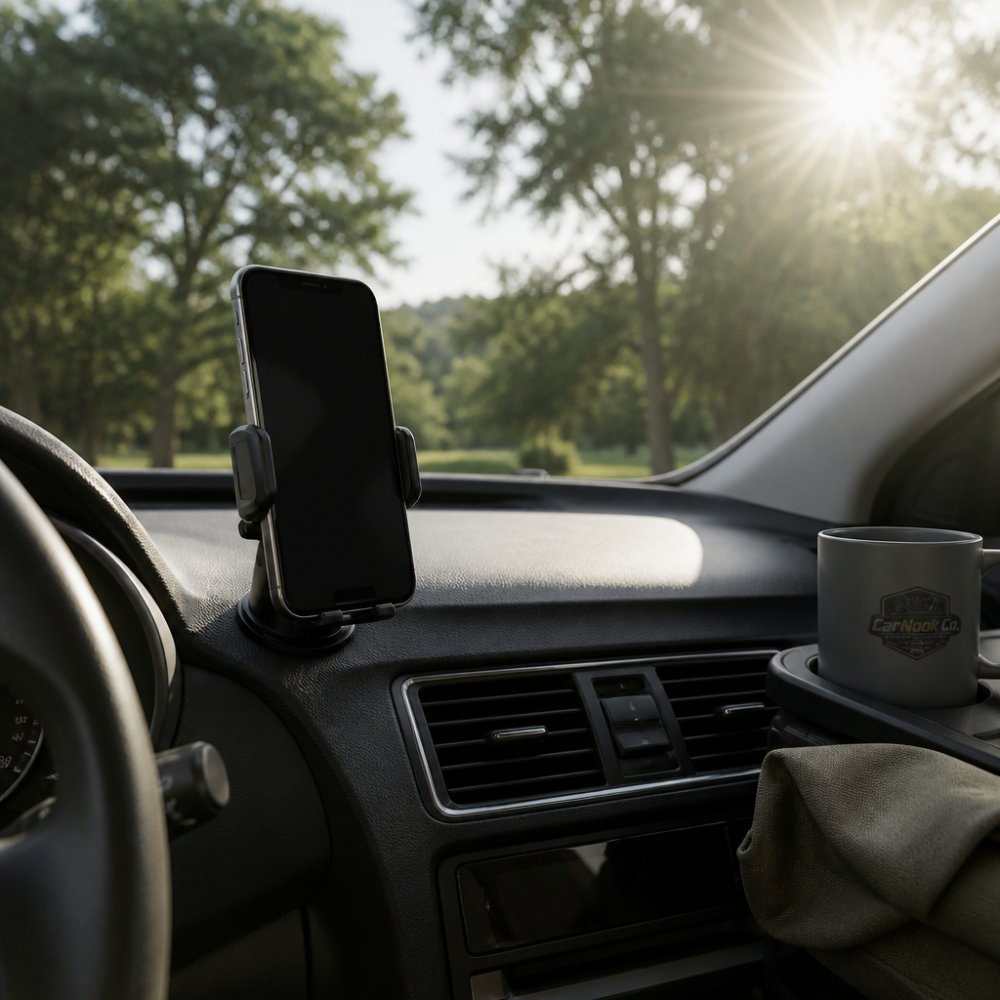
Avoid mounting directly against the windshield or anywhere the sun hits it for extended periods.
The CarNook™ DashGrip Phone Mount keeps your phone secure on your dashboard while letting you position it strategically to avoid direct sun exposure. Its compact design means you can tuck it into shadowed areas of your dashboard without blocking your view.

Step 2: Reduce Screen Brightness and Enable Adaptive Display
Your screen is a major heat generator on your phone. Running at maximum brightness while using GPS creates serious thermal stress.
Reduce your screen brightness manually by swiping down from the top to access brightness controls. Set it to a level where you can still read the map clearly.
Enable adaptive brightness if your phone has it. This feature automatically adjusts brightness based on ambient light, preventing your phone from running at full power unnecessarily.
Many phones may also offer a "reduce motion" or "power saving" display mode that dims the display and limits visual effects, which can reduce heat generation.
Check your GPS app settings. Some apps let you switch to a simpler map view that uses fewer graphics and generates less processor load while still showing your route and turn information.
Step 3: Disable High-Drain Features While Navigating
Bluetooth, Wi-Fi, and mobile data all consume power and generate heat. When focused on navigation, disable the ones you don't actively need.
Turn off Bluetooth if you're not using a wireless speaker or headset. Disable Wi-Fi if you've already downloaded offline maps. Keep mobile data on for real-time navigation updates and traffic information.
If you have location services enabled for other apps in the background, disable those permissions temporarily while navigating.
Enable battery saver mode. Most phones have a low-power mode that restricts background activity and reduces processor speed. Your phone stays cooler and your battery lasts longer.
Step 4: Remove Your Phone Case During Long Navigation Sessions
Phone cases trap heat by insulating your device and preventing heat from escaping into the surrounding air.
During long navigation sessions, remove your phone from its case to let air circulate around the device and heat dissipate more effectively.
If you're concerned about dropping your phone without a case, use a secure mount like the CarNook™ DashGrip Phone Mount, which grips your phone firmly during use.
Store your case in a cup holder or side pocket during navigation sessions. Put it back on once you've reached your destination or when you're not actively using GPS.
Step 5: Close Background Apps and Reduce Processor Load
Apps running in the background consume processor power and generate heat. Before navigating, close apps you don't need.
Swipe up from the bottom to access your recent apps menu, then close apps that use location services, stream video, or perform frequent updates.
Disable notifications for non-essential apps during your drive, as frequent notifications force your processor to wake up repeatedly.
Use your phone's task manager or app monitor to identify apps consuming the most battery and processing power, then close them before navigating.
Disable background app refresh for everything except your navigation app and critical communication apps, as many phones refresh app data constantly even when not in use.
Switch to a static wallpaper during hot weather driving, as live wallpapers and animated widgets consume processor power.
Best Car Phone Mount for Road Trips: Choosing the Right Holder
The right phone mount holds your device securely without blocking air vents and lets you position it away from direct sun.
Dashboard mounts like the CarNook™ DashGrip offer positioning flexibility. Vent mounts leverage your car's air conditioning for passive cooling. Windshield mounts are convenient but expose your phone to more direct sunlight.
Choose a mount with adjustable angles so you can position your phone to maximize shade and airflow.
Ensure your mount holds your phone securely. A loose mount lets your phone shift and lose contact with cooling airflow.
The CarNook™ DashGrip Phone Mount combines security with positioning flexibility, letting you find the balance between visibility and heat management.
Active Cooling Accessories to Prevent Phone Overheating in Car
Passive cooling strategies work well for moderate heat. On extremely hot days, during long road trips, or in vehicles with weak air conditioning, active cooling accessories can help you keep phone cool GPS sunlight exposure and provide additional protection.
Passive Vent-Mount Cooling
Vent mounts direct your car's air conditioning toward your phone by attaching to dashboard or center console vents. As long as your AC is running, cool air flows continuously toward your device.
Vent mounts require no batteries and work passively as long as AC is on. However, they depend entirely on your car's AC performance and may cause condensation in extreme temperature differences. They work best in moderate to hot climates where your AC is already running.
Active Fan-Based Phone Coolers
Phone cooling cases and clip-on fans use small electric fans to actively pull heat away from your device. They require charging but provide consistent cooling regardless of your car's air conditioning.
A small fan draws air across your phone's surface, increasing heat dissipation. Some models include thermal pads or cooling plates that absorb and transfer heat.
Active coolers work independently of your car's AC and provide consistent cooling on extremely hot days. However, they require charging, add bulk, and may produce fan noise. They're most useful if your car lacks strong air conditioning or if you're navigating in extreme heat for extended periods.
Thermal Pads and Heat-Dissipating Materials
CarNook™ DashGrip Phone Mount →
Thermal pads, graphite sheets, and heat-dissipating case materials work by absorbing heat from your phone and transferring it to the surrounding air or to a mount. These are passive solutions, they require no power, but they improve heat transfer compared to standard cases or mounts.
How they work: Thermal materials have high thermal conductivity, meaning they transfer heat efficiently. When applied between your phone and a mount, or built into a case, they pull heat away from your device's hot spots (typically the processor and battery area) and distribute it across a larger surface area, where it dissipates into the air more effectively.
Advantages:
- No power required
- Lightweight and compact
- Can be integrated into existing cases or mounts
- Inexpensive compared to active coolers
- Passive; always working when in contact with your phone
Trade-offs:
- Provide modest cooling compared to active fans or vent mounts
- Effectiveness depends on material quality and thickness
- May add slight bulk to your case or mount
- Work best when combined with other cooling strategies
Thermal materials are a good complement to other cooling methods but are typically not sufficient as a standalone solution on extremely hot days.
Choosing the Right Active Cooling Solution
Your best choice depends on your specific situation:
- Strong car AC + moderate heat: A passive vent mount is likely sufficient and requires no additional investment.
- Weak car AC or extreme heat: Combine a vent mount with thermal pads, or invest in an active fan cooler for backup.
- Extended navigation sessions (3+ hours) in hot weather: An active fan cooler provides the most reliable protection.
- Stationary GPS use (e.g., mounted on dashboard during breaks): An active cooler or thermal pads help prevent battery damage while parked.
- Budget-conscious: Start with a vent mount and thermal pads; upgrade to an active cooler only if thermal throttling persists.
Important Consideration: Condensation Risk
When using vent mounts or active coolers in humid climates, be aware that rapid temperature changes can cause condensation inside your phone. If you're using a vent mount with very cold AC air, or if you move your phone from a hot car into a cool, air-conditioned building, moisture may accumulate inside the device. To minimize this risk:
- Allow your phone to acclimate gradually when moving between extreme temperatures
- Avoid placing your phone directly against cold AC vents for extended periods
- If condensation appears on your screen, power off the phone and let it dry in a warm, dry location before using it again
Most modern phones have some moisture resistance, but condensation inside the device can cause corrosion or short circuits if left unchecked.
Combining Strategies for Maximum Cooling
The most effective approach combines multiple cooling methods. For example:
- Position your phone away from direct sunlight (passive positioning)
- Use a vent mount with cool AC air flowing toward your device (passive vent cooling)
- Apply thermal pads to your mount or case (passive thermal management)
- Reduce screen brightness and close background apps (software optimization)
- Remove your phone case during the drive (passive heat dissipation)
This layered approach addresses heat from multiple angles, reducing internal heat generation, improving external heat dissipation, and leveraging your car's cooling system. On extremely hot days, you may also add an active fan cooler as a final safety layer.
The CarNook™ DashGrip Phone Mount positions your phone for optimal airflow and visibility, making it an effective foundation for any cooling strategy. Pair it with your car's air conditioning, reduce screen brightness, and close unnecessary apps for a comprehensive cooling solution that works in most conditions.
Recognize Thermal Throttling and Emergency Recovery
Thermal throttling is your phone's built-in defense system. When internal temperature rises beyond the manufacturer's safe operating range, the processor may automatically reduce its clock speed. This slowdown can cut power consumption and heat generation, but it may also degrade performance. Understanding this mechanism can help you recognize the warning signs before your phone shuts down completely.
How Thermal Throttling Works
Your phone's processor generates heat as it performs calculations. GPS navigation, map rendering, and screen display all demand processor cycles. In direct sunlight, external heat adds to internal heat. When the combined temperature exceeds the device's thermal threshold, the processor throttles, it runs slower to produce less heat. This is not a malfunction; it's a protective measure. However, throttling makes navigation sluggish and unreliable, which defeats the purpose of using GPS in the first place.
The throttling process is often gradual. Your phone may throttle at certain temperatures, and each stage may reduce performance more severely.
Early Warning Signs
Recognize these indicators that your phone is approaching or experiencing thermal throttling:
- GPS navigation apps become sluggish, unresponsive, or lag when panning the map
- Maps take noticeably longer to load or refresh route information
- Your phone refuses to charge, or charging stops mid-session
- Battery drains faster than normal, even with reduced screen brightness
- Screen flickers, dims unexpectedly, or becomes difficult to read
- Apps crash, freeze, or close without warning
- Your phone feels hot to the touch, especially around the camera or processor area (typically the upper back of the device)
- A temperature warning notification appears on your lock screen
If you notice any of these signs, your phone is signaling thermal stress. Do not ignore it.
Emergency Recovery Protocol
If your phone shows a temperature warning or exhibits multiple throttling symptoms, follow these steps immediately:
-
Pull over safely. If you're driving, find a safe place to stop. Do not attempt to continue navigating while your phone is overheating.
-
Stop GPS immediately. Close your navigation app completely. GPS is one of the most power-intensive features on your phone; stopping it reduces heat generation right away.
-
Remove the phone from its mount and case. Unmount your phone from the dashboard or vent. If it's in a protective case, remove it. Trapped heat cannot escape if your device is insulated. Removing the case and mount allows air to circulate freely around the phone.
-
Power off the screen. Turn off your phone's display or place it face-down on a cool surface (like a car seat or console). The screen is a major heat source; turning it off reduces thermal load significantly.
-
Move the phone to a cooler location. Place your phone in a shaded area of your car, away from direct sunlight. If your car has air conditioning, direct a vent toward the phone (without mounting it directly in the vent, which can cause condensation). Do not place it in a freezer or use ice; rapid temperature changes can damage internal components and cause condensation inside the device.
-
Wait 15-30 minutes. Let your phone cool completely before attempting to use it again. This is not optional. Continuing to use an overheated phone risks permanent damage to the battery and processor.
-
Check the temperature warning. Once the warning clears and your phone feels cool to the touch, you can resume use, but only after implementing the cooling strategies from this guide.
Why This Matters: Preventing Permanent Damage
If your phone reaches a critical temperature, it may enter a forced shutdown or a severely restricted low-power mode. At this point, the battery itself may be damaged. Lithium-ion batteries can degrade faster when exposed to high temperatures repeatedly. A single overheating incident may not cause permanent damage, but chronic overheating during summer road trips can reduce your battery's lifespan and its maximum charge capacity over time.
By following this emergency protocol, you give your phone time to cool and prevent the battery from reaching critical temperature thresholds.
Resuming Navigation Safely
Once your phone has cooled, do not simply resume navigation as if nothing happened. Implement the preventive strategies from this guide:
- Reposition your mount away from direct sunlight
- Reduce screen brightness to a comfortable but not maximum level
- Close background apps and enable battery saver mode
- Remove your phone case during the drive
- If using a vent mount, ensure cool air is flowing toward your device
If your phone overheats again during the same trip, stop navigation entirely. Use voice-guided directions only, or pull over and plan your route during a longer break. Your phone's thermal system is telling you that the current conditions exceed its cooling capacity.
Frequently Asked Questions
How do I know if my phone is overheating while using GPS navigation?
Watch for a temperature warning on your screen, sudden performance slowdowns, or the phone feeling hot to the touch. Your device may also throttle processor speed to cool down, making maps and turn-by-turn navigation respond more slowly. Some phones show a thermal shutdown warning before powering off completely. If you notice any of these signs, stop navigation briefly and let the device cool in a shaded, ventilated area.
Can I keep my phone cool while using GPS in direct sunlight without removing my case?
Phone cases trap heat, so removing yours during extended navigation sessions helps significantly. However, if you prefer to keep your case on, choose one made from thin, breathable materials rather than thick protective cases. Position your phone in an air conditioning vent or use a mount that allows airflow around the device. For road trips, consider removing the case during navigation and reattaching it when you're parked.
Does using GPS drain my battery faster in hot conditions?
Yes. GPS uses significant processor power and screen brightness, both of which generate heat and drain battery quickly. When your phone overheats, the internal components work less efficiently, draining the battery even faster. Lithium-ion batteries also lose charge capacity in high temperatures. Reducing screen brightness, closing background apps, and keeping your phone cool can help extend battery life during long road trips with navigation active.
What's the best way to mount a phone for GPS navigation while keeping it cool?
Use a dashboard mount positioned in a shaded area of your windshield, away from direct sunlight. Mounts that allow airflow around your phone (rather than fully enclosing it) help with heat dissipation. If possible, position the mount near an air conditioning vent. The CarNook™ DashGrip Phone Mount offers an adjustable viewing angle, allowing you to position your phone for optimal visibility while keeping it in a cooler spot on your dashboard.